Illustrative Stepwise Detail for NTFS Data Recovery Process

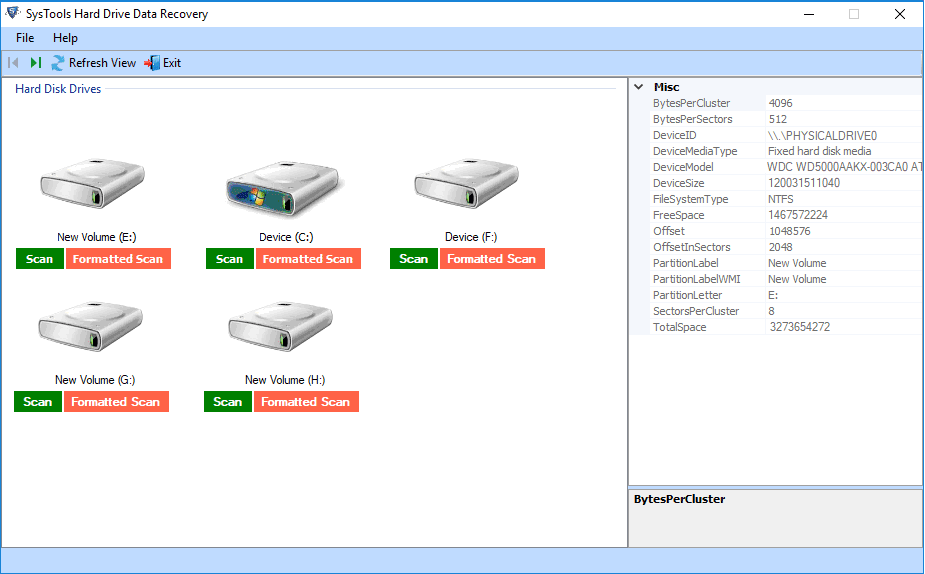
1. Open SysTools Hard Drive Data Recovery. For this, go to Start > Programs > SysTools Hard Drive Data Recovery > SysTools Hard Drive Data Recovery. The initial software screen that you will see appears like the below screenshot:

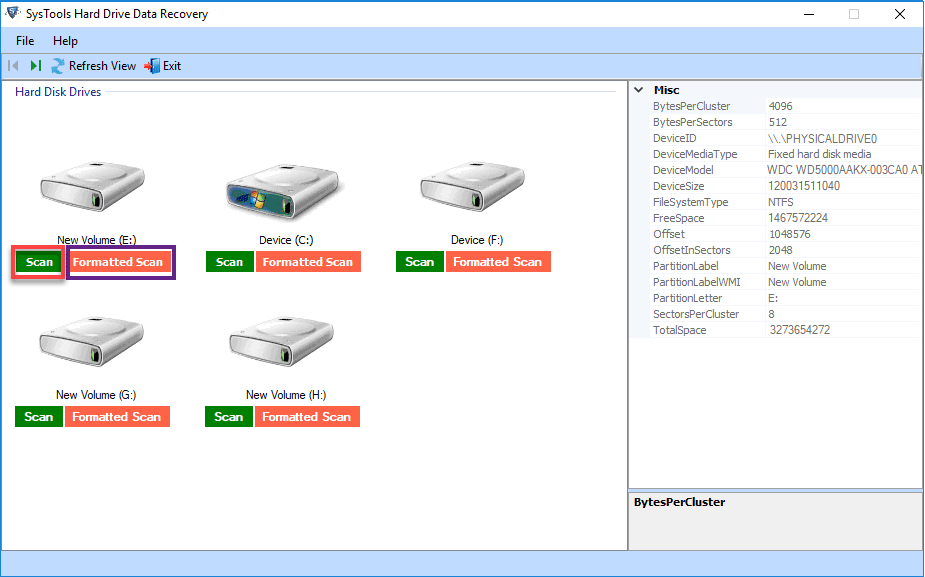
2. Select NTFS partition to recover the files & folders. To select hard disk & partition, select the disk from the list as shown below:

3.Choose one of the available recovery options. Following recovery options are available:

  • Recover the Partition/Drive/Volume (Without deleted files/folders): Choosing this option will only recover the partition without recovering deleted files & folders.
  • Recover the formatted Partition/Drive/Volume: Choosing this option will recover formatted drives, partitions or volumes.
  • Recover the Partition/Drive/Volume including deleted files or folders: Choosing this option will recover the partition and also deleted files & folders from selected partitions.

4. Choose the appropriate data recovery option:

5.Click the ‘Recover’ button as shown under in the red marked area:

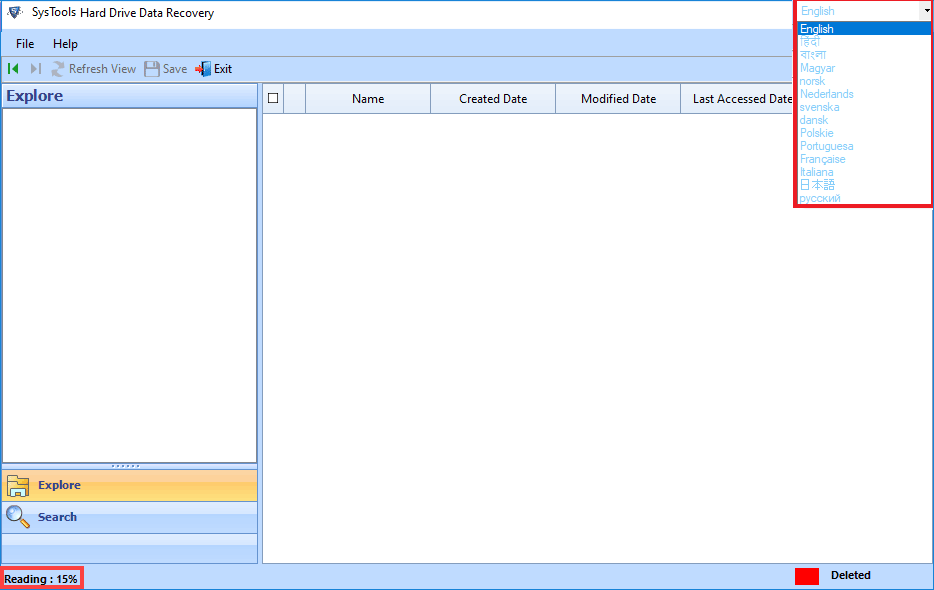
6. Software starts the scanning the selected NTFS partition for recovering the files and folders as depicted below:

7. Software prompts a brief summary of the number of files & folders found after scanning as follows:

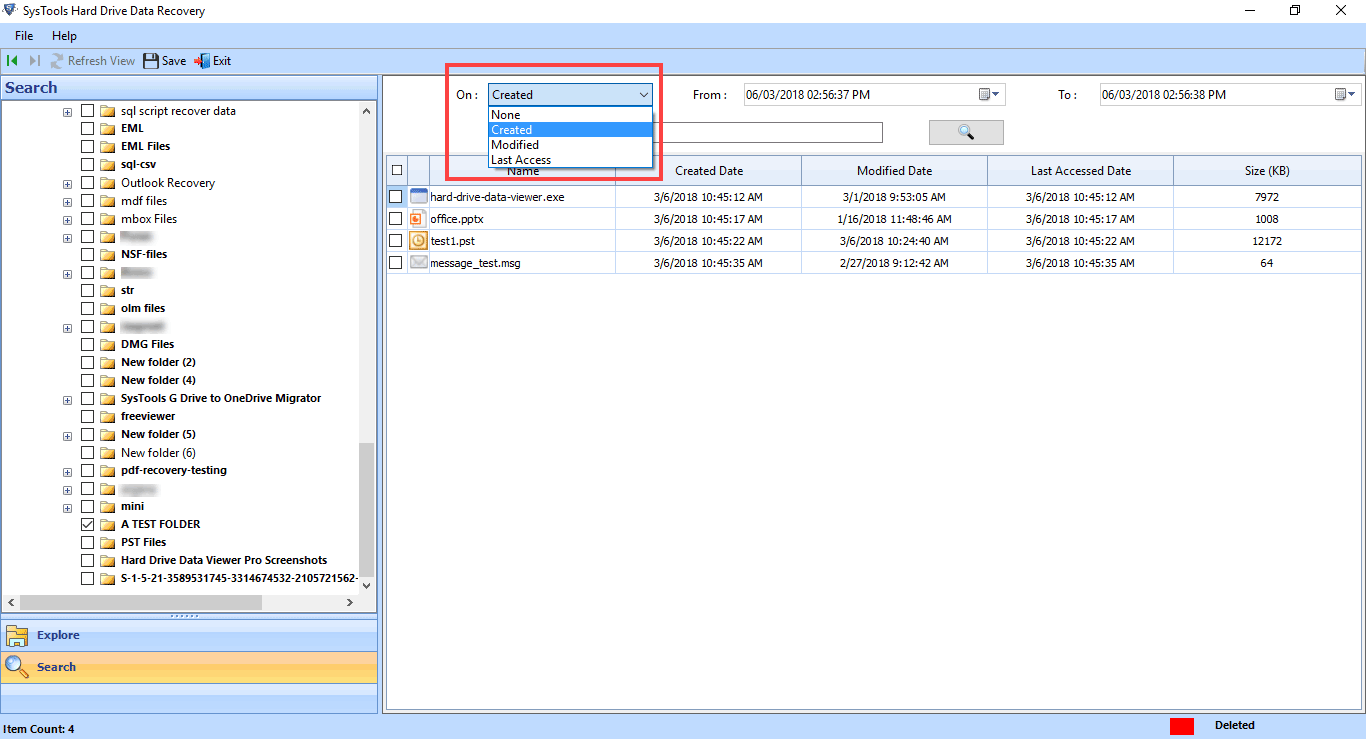
8. To search a file, click the ‘Search’ button. Else, click the ‘Close’ button.

How to View and Save Recovered Data Items?

Viewing Recovered Data Items

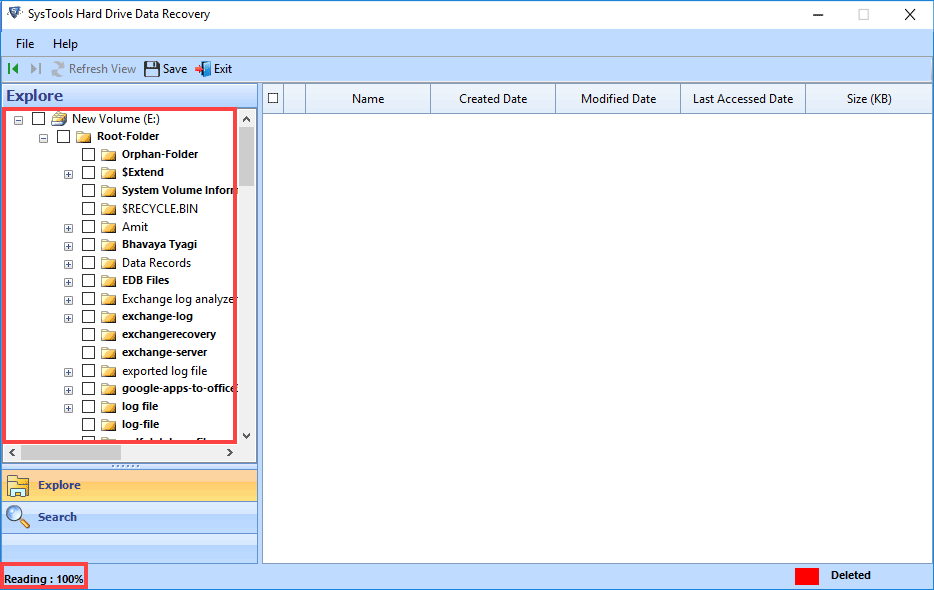
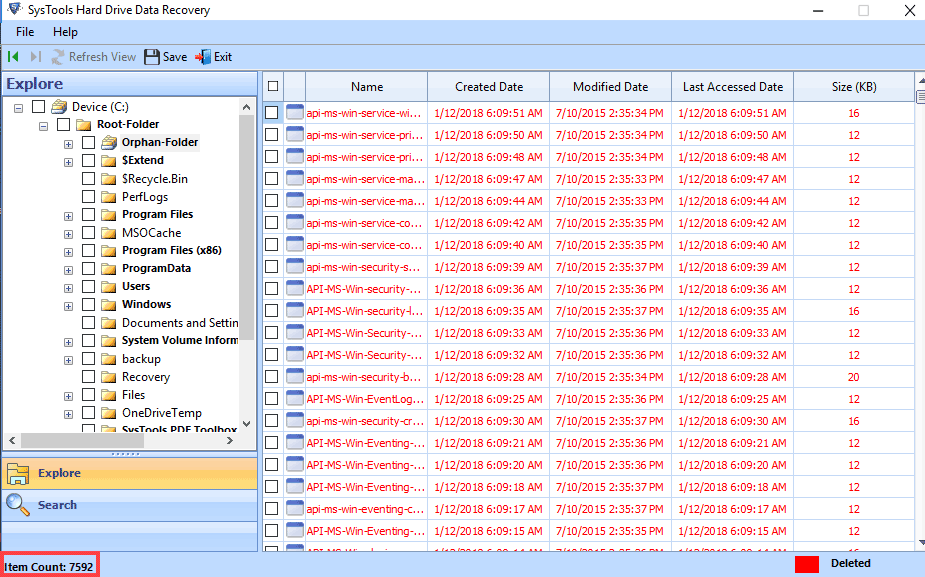
9. After the scanning process completes, software will display all files & folders found in the selected NTFS partition as follows :

10. To view any file or folder – select that file, right-click on it and choose ‘Preview Selected File’ from the drop down menu as shown below :

11. Software shows a preview of the selected file in the File View Pane. File View pane is marked in Red color in the following screenshot:

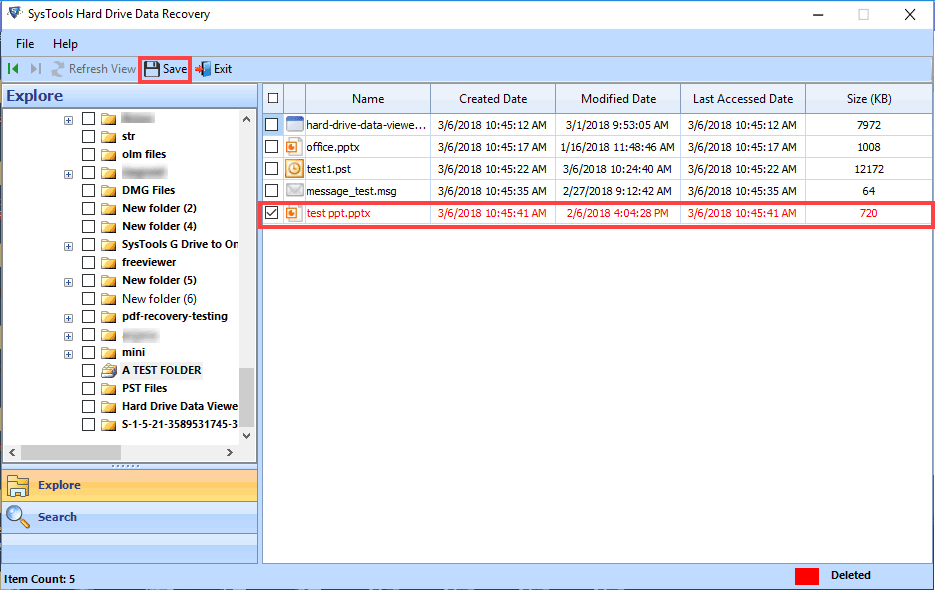
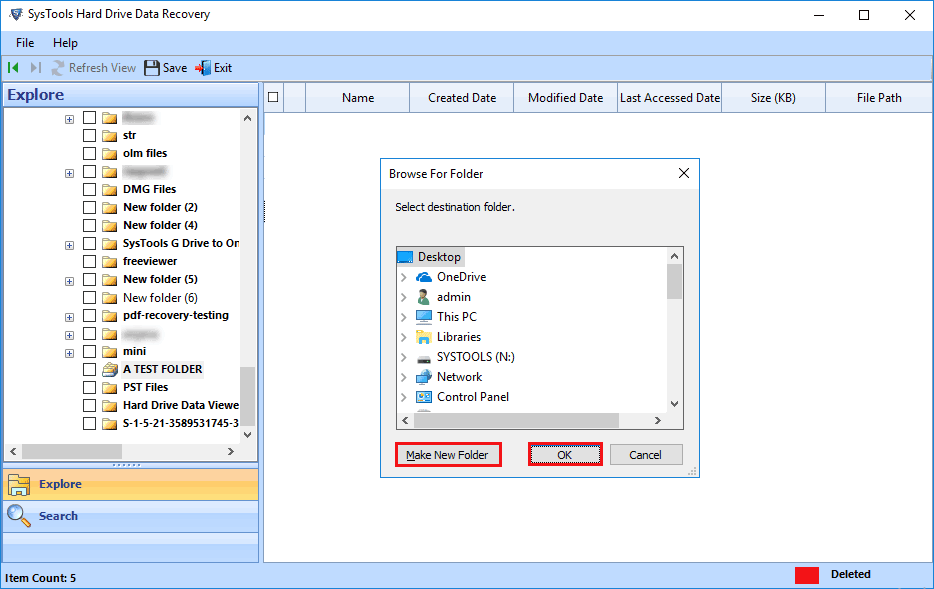
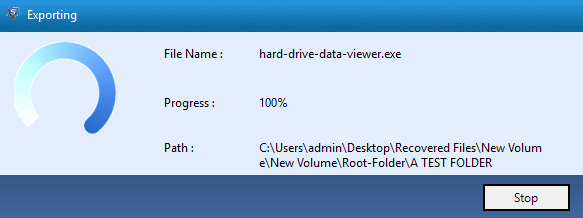
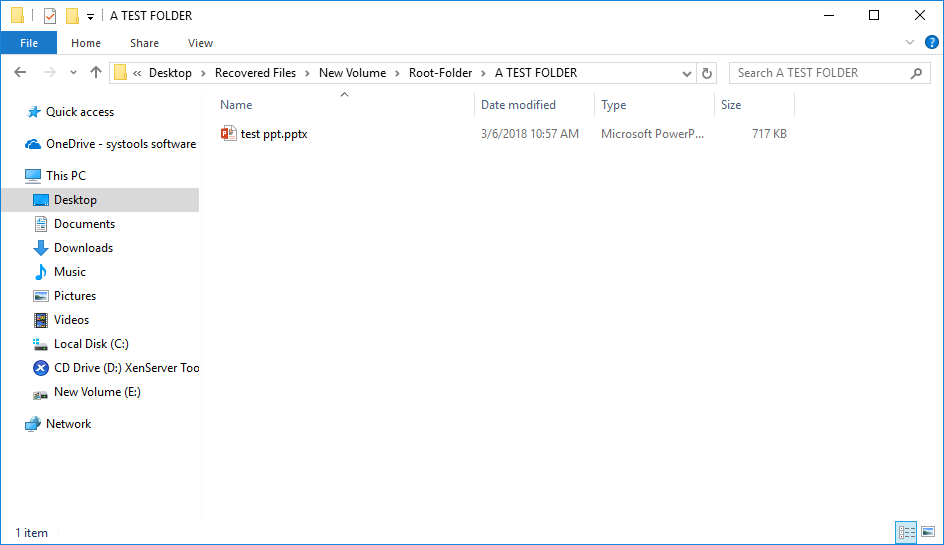
  • To Save Folders: Select the folder from Left Pane, right-click on it and choose ‘Extract Selected Folders’ from the drop down menu as shown below :
  • To Save Files: Select the file from the Right Pane, right-click on it and choose ‘Extract Selected Files’ from the drop down menu as shown below :


Chat with Our Experts